CaF · Copy and Forget

Find what you copied.
Keep what matters.

A clipboard manager for macOS. Text, links, files and screenshots, all in a searchable library.
Keep useful clips close, and clear out the rest.

For your MacComing Soon
Explore the preview

Your library lives locally on your Mac.

Your clipboard, collectedCaF · v1 preview
CaF Clips showing design boards, a useful link, a launch checklist and project PDFs in one library.View screenshot
01See where a clip came from02Pin what you reach for often03Apply changes to multiple clips
Text & linksImages & filesAudio & videoPDFs & documents

From copied to useful

A little less hunting.
A lot more context.

Your clips keep their source, previews and details, so finding the right one feels familiar.

02 / Organize

Make a collection.
Let it keep up.

Save a search as a collection. Matching clips join automatically, including the things you copy next.

Prefer to choose by hand? Add selected clips to a manual collection, pin your favorites, or lock important items in Vault.

Your search becomes the rule.
Current and future matches, in one place.
Reference library @Safari #pdf
The Reference library collection showing three matching PDF clips and its saved search rule.View screenshot ↗
One useful search. A collection that stays current.
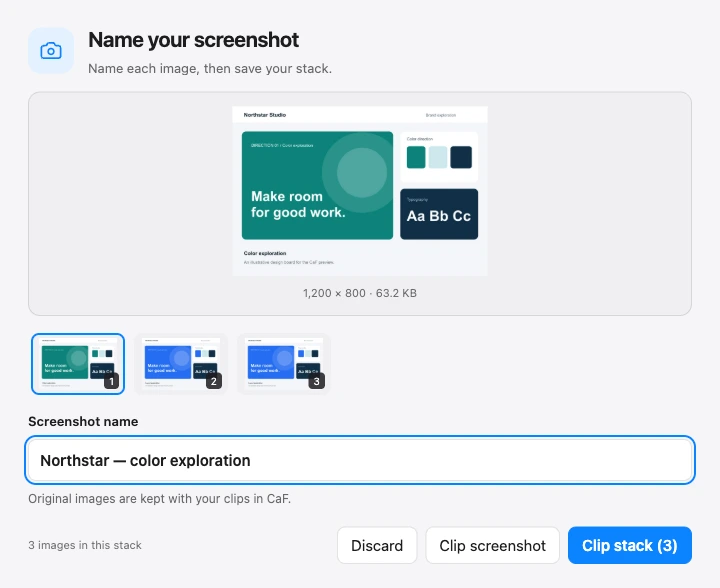
CaF screenshot naming window with a design preview, a name field and a stack of three captures.View screenshot ↗
Actual app preview · illustrative project data
03 / Capture

A screenshot with a name
is easier to find later.

Name a capture before you clip it. Screenshots taken close together stay in one stack, so you can work through them in order.

  • 01
    Capture a screen, window or selection

    Use familiar macOS screenshot shortcuts.

  • 02
    Give the moment a useful name

    Keep the context while it is still fresh.

  • 03
    Keep the original with your clips

    Find it again from the Screenshots tab.

04 / Make room

Know what goes.
Keep what stays.

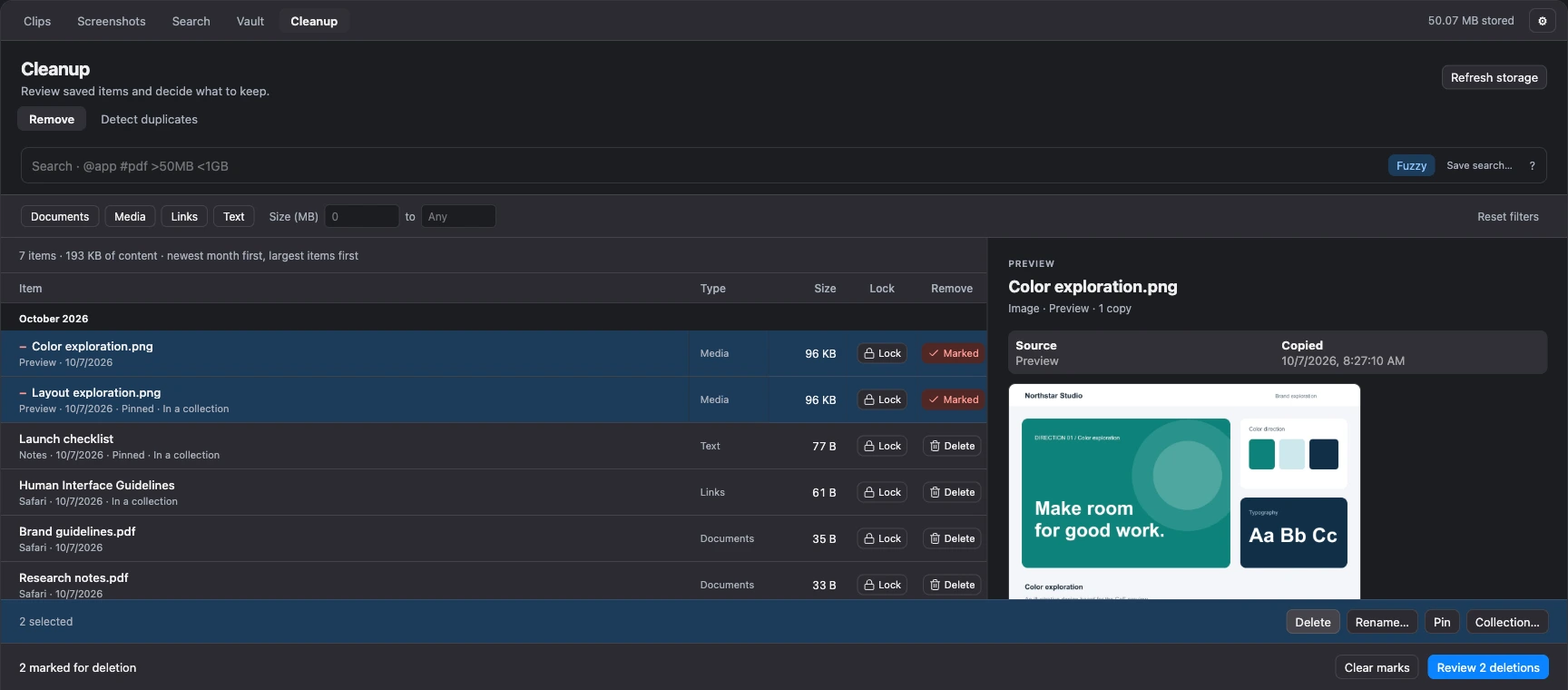
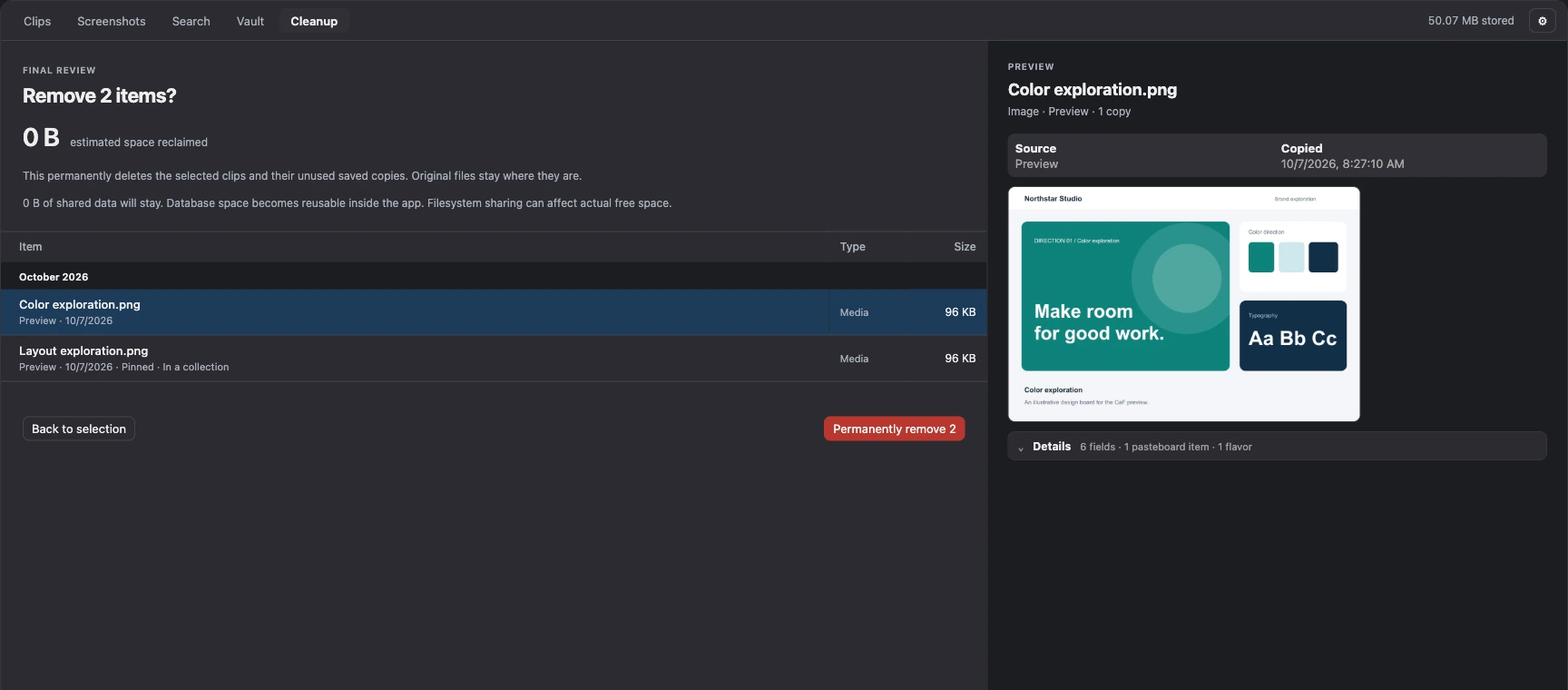
Filter by type and size, preview an item, and mark what can go. Review the proposed deletions and estimated space before you confirm.

Cleanup showing selected rows, a preview pane, bulk actions, and a Review deletions button.View screenshot ↗

Find duplicates

Review matching content and keep a retained copy.

Protect the keepers

Locked clips stay in Vault until you unlock them.

A timely storage nudge

Get a warning when the library grows beyond 5 GB.

See the final review screen

Built around everyday work

Familiar moves.
Fewer repeated steps.

Select a whole range

Shift-click between rows. Command-click to add or remove an item.

Rename a batch

Preview numbered names, keep each extension, and apply them together.

Give search more room

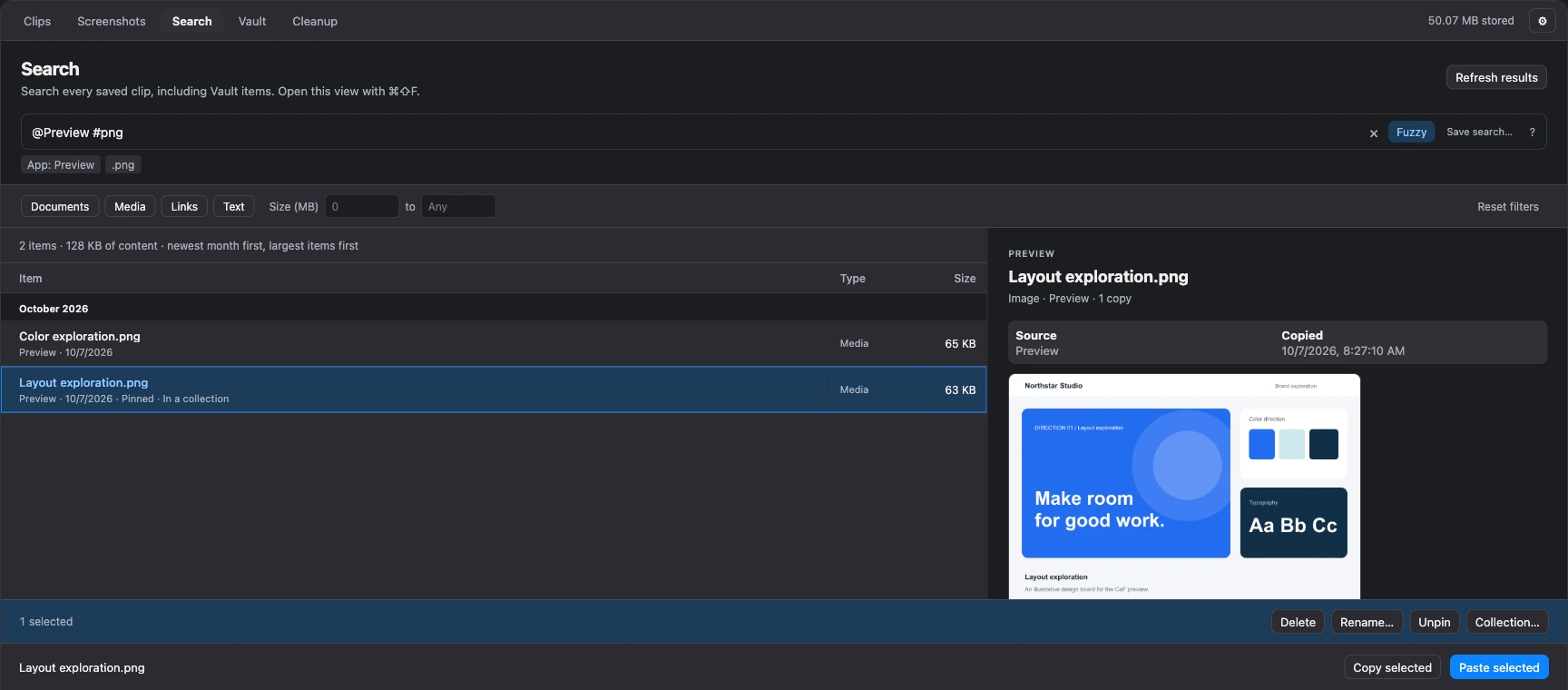
Open a full-page search view with the list and preview side by side.

A few things to know

Before you make
room for it.

CaF is coming soon for macOS.

Can I download CaF yet?

This is a preview of the app. The public download is coming soon; release timing and pricing have not been announced.

Where does my clipboard history live?

Your clip library is stored locally on your Mac. CaF keeps saved file copies and screenshot originals with the app’s data. A cloud account is not required.

What can I save?

Text, links, images and file clips. The preview pane supports common image, audio, video and document formats, including PDF. Preview availability depends on the format and whether the original or a saved copy is available.

What does locking an item do?

Locked items appear in Vault and are protected from deletion. Unlock an item when you are ready to include it in cleanup.

Which macOS permissions does it use?

Screen Recording permission enables screenshot capture. Accessibility permission lets CaF paste directly into other apps. The app shows permission status and links to the relevant macOS settings.

CaF · Copy and Forget for macOS

Keep the useful stuff
within reach.

For your MacComing Soon

Full size ↗